
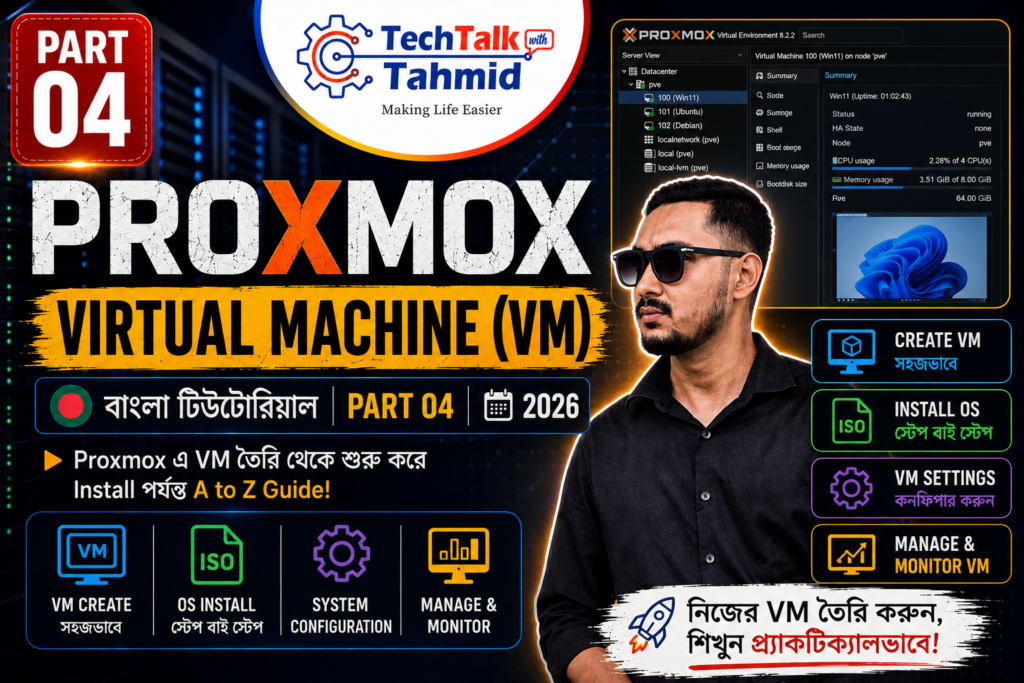

Welcome back to Part 04 of our Proxmox Virtualization Masterclass series. In the previous segment, we successfully configured our ZFS storage array and reviewed core networking protocols. Today, we will take a deep dive into creating your very first Virtual Machine (VM) using a step-by-step approach, explaining what each specific configuration layer does underneath the hood.
Step 1: Storage Preparation (LVM vs. LVM-Thin)
Before deploying any virtual ecosystem, we must establish a fast secondary solid-state storage pool. When choosing an allocation mechanism in Proxmox, understanding the difference between standard LVM and LVM-Thin is vital:
- Standard LVM (Thick Provisioning): Pre-allocates the total block space instantly. If you allocate a 50GB virtual drive to a guest operating system, that full 50GB is locked out from the host entirely—even if the guest only uses 10GB of data.
- LVM-Thin (Thin Provisioning): Consumes storage dynamically. Assigning 50GB to a VM only draws down what is physically written to the blocks (e.g., a fresh 15GB installation only uses 15GB from the host). This permits smart over-provisioning and allows you to run multiple environments efficiently without wasting physical blocks. Furthermore, LVM-Thin natively supports virtual system snapshots.
Formatting and Initializing Your SSD:
- Access your Proxmox VE web interface and click on your primary system Node in the left sidebar hierarchy tree.
- Navigate into the Disks sub-menu from the secondary navigation column.
- Locate your targeted unassigned solid-state drive, highlight it, and click Wipe Disk in the top action toolbar to clear out legacy partition structures.
- Once wiped, click on Initialize Disk with GPT to prep the raw disk infrastructure.
- Move down to the LVM-Thin tab on the left and click the Create: Thin Pool button.
- In the configuration menu, choose your newly initialized drive, provide a clear identifier name (e.g.,
SSD_Storage), verify that the Add Storage option is checked, and click Create.
Step 2: Uploading an Operating System ISO Image
To boot a virtual environment and load an operating system, Proxmox needs access to an installation ISO image file.
- In the left-hand navigation panel, locate the default storage controller named local.
- Click on the ISO Images tab inside the main workspace container.
- Proxmox provides two convenient ways to fetch files: Upload (to transfer a file directly from your current computer) or Download from URL (to stream an image directly to the server from an external mirror link).
- Click the Upload button, click Select File, choose your local operating system image (e.g., a Windows 10 or Linux installer ISO), and click upload. Wait for the browser progress monitor to register a clean 100% completion status.
Step 3: Executing the Virtual Machine Wizard
Look to the top right side of the main blue Proxmox banner line and click the Create VM button to open up the structured initialization script wizard. Configure your parameters methodically across the tabs:
- General Tab: Give your machine an explicit identification tag name inside the Name field (e.g.,
Windows10-VM). Check the advanced option labeled Start at boot if you want this guest instance to boot up automatically whenever your physical server cycles power. - OS Tab: Set your target storage path back to
local, use the drop-down menu to pick your recently uploaded installation ISO file, and specify your precise operating system flag under the Type and Version sections (e.g., Microsoft Windows). - System Tab: Keep your standard graphic card allocations. For modern security or UEFI compatibility targets, map your firmware layer directly to **OVMF (UEFI)** and point the tracking storage variable directly to your high-speed
SSD_Storagepool. (Note: Disable or uncheck the TPM module if your chosen OS generation does not strictly require it, which keeps configurations clean). - Disks Tab: Set your storage target selection directly to your newly configured
SSD_Storagepool and specify your desired capacity allocations inside the **Disk size (GiB)** box (e.g.,128GiB). - CPU Tab: Assign your target thread requirements based on your hardware layout capacity. Allocating **1 Socket** combined with **2 Cores** provides a solid performance baseline for typical service workloads.
- Memory Tab: Input your dedicated volatile memory limits. Allocating
8192MB provides a balanced 8GB system space for general compute operations. - Network Tab: Leave this bound directly to your native Linux bridge mechanism labeled vmbr0. This configuration bridges the virtual instance network adapter card to your real on-board physical Ethernet line, enabling it to pull an independent IP address straight from your home router gateway.
Review the final summary tab matrix, crosscheck your resource parameters, and click the Finish button to build the node instance container.
Step 4: Launching and Booting Your New VM
Once the construction script returns a success message in the bottom tasks log window, your machine will appear in the inventory tree.
- Select your newly generated virtual machine identity code (e.g., 100) from the left inventory list view.
- Move to the upper master control utility row and hit the Start button to engage the virtual processor blocks.
- Immediately jump over to the Console tab on the main display matrix workspace area.
- Click inside the terminal window view to capture your input focus. When the system prompts you to press any key to boot from an optical volume, tap a key on your keyboard. Your installation environment will initialize, bringing up the standard operating system setup sequence seamlessly.
Conclusion
Your Virtual Machine is now successfully deployed on a dedicated fast storage pool, isolated cleanly inside the network bridge matrix, and ready to host custom applications. In our upcoming masterclass segment, we will pivot to ultra-lightweight virtualization frameworks by exploring Linux Containers (LXC) and mapping out efficient infrastructure provisioning paths.
To watch the full configuration sequence and operating system initialization live, view the complete setup video tutorial below:
![[Part 04] - Proxmox Tutorial । Virtual Machine (VM) Creation | বাংলা টিউটোরিয়াল | 2026](https://i.ytimg.com/vi/8EoUdm9HDLQ/hqdefault.jpg)