













• About
  • Sponsor
  • Privacy Policy
  • DMCA
  • Contact
  • Login
  • Register
Friday, June 12, 2026
TechTalk with Tahmid
  • Home
  • Tech News

    **AI’s rapid evolution and its societal impacts** is dominating the tech world, sparking debates on everything from job displacement to ethical governance.

    “Cut through the AI hype: Discover the practical tools and strategies you *actually* need to leverage generative AI for real-world impact without getting overwhelmed.”

    “Cut through the AI hype: Discover the practical tools and strategies you *actually* need to leverage generative AI for real-world impact without getting overwhelmed.”

    **From new AI-powered PCs to increasingly sophisticated LLMs, the biggest tech trend is how quickly generative AI is becoming less a novelty and more an indispensable, transformative force in our daily work and lives.**

    **Unpack practical, immediate ways to leverage the rapidly evolving world of generative AI to boost your personal and professional productivity today.**

    **Unpack practical, immediate ways to leverage the rapidly evolving world of generative AI to boost your personal and professional productivity today.**

    **Generative AI is no longer a futuristic fantasy – it’s your everyday co-pilot, fundamentally changing how we work, create, and interact with information.**

    **Beyond the hype: Discover how the latest generative AI tools are *actually* transforming daily workflows and what it means for *your* productivity right now.**

    As AI rapidly integrates into every facet of our lives, the real question isn’t *what* it can do, but *how* we’ll adapt to a fundamentally reshaped world.

  • Tutorial

    How to Setup Proxmox Backup and Restore Using ZFS

    Proxmox LXC Setup Guide (2026)

    Proxmox LXC Setup Guide (2026)

    Proxmox VE Virtual Machine Creation Guide (2026)

    Proxmox VE Virtual Machine Creation Guide (2026)

    Proxmox VE Storage Configuration & Networking Guide: RAID & ZFS Setup (2026)

    Proxmox VE Storage Configuration & Networking Guide: RAID & ZFS Setup (2026)

    Proxmox VE Post-Installation Guide & UI Walkthrough (2026)

    Proxmox VE Post-Installation Guide & UI Walkthrough (2026)

    Proxmox Installation Guide: How to Turn Your Old PC into a Powerful Server?

    Proxmox Installation Guide: How to Turn Your Old PC into a Powerful Server?

    How to Install Ubuntu Using an USB Pendrive

    How to Install Windows 10 Using an USB Pendrive

    How to Install Windows 10 Using an USB Pendrive

  • Server
    • All
    • Proxmox Server

    How to Setup Proxmox Backup and Restore Using ZFS

    Proxmox LXC Setup Guide (2026)

    Proxmox LXC Setup Guide (2026)

    Proxmox VE Virtual Machine Creation Guide (2026)

    Proxmox VE Virtual Machine Creation Guide (2026)

    Proxmox VE Storage Configuration & Networking Guide: RAID & ZFS Setup (2026)

    Proxmox VE Storage Configuration & Networking Guide: RAID & ZFS Setup (2026)

    Proxmox VE Post-Installation Guide & UI Walkthrough (2026)

    Proxmox VE Post-Installation Guide & UI Walkthrough (2026)

    Proxmox Installation Guide: How to Turn Your Old PC into a Powerful Server?

    Proxmox Installation Guide: How to Turn Your Old PC into a Powerful Server?

  • PC
  • Smartphone
No Result
View All Result
TechTalk with Tahmid
  • Home
  • Tech News

    **AI’s rapid evolution and its societal impacts** is dominating the tech world, sparking debates on everything from job displacement to ethical governance.

    “Cut through the AI hype: Discover the practical tools and strategies you *actually* need to leverage generative AI for real-world impact without getting overwhelmed.”

    “Cut through the AI hype: Discover the practical tools and strategies you *actually* need to leverage generative AI for real-world impact without getting overwhelmed.”

    **From new AI-powered PCs to increasingly sophisticated LLMs, the biggest tech trend is how quickly generative AI is becoming less a novelty and more an indispensable, transformative force in our daily work and lives.**

    **Unpack practical, immediate ways to leverage the rapidly evolving world of generative AI to boost your personal and professional productivity today.**

    **Unpack practical, immediate ways to leverage the rapidly evolving world of generative AI to boost your personal and professional productivity today.**

    **Generative AI is no longer a futuristic fantasy – it’s your everyday co-pilot, fundamentally changing how we work, create, and interact with information.**

    **Beyond the hype: Discover how the latest generative AI tools are *actually* transforming daily workflows and what it means for *your* productivity right now.**

    As AI rapidly integrates into every facet of our lives, the real question isn’t *what* it can do, but *how* we’ll adapt to a fundamentally reshaped world.

  • Tutorial

    How to Setup Proxmox Backup and Restore Using ZFS

    Proxmox LXC Setup Guide (2026)

    Proxmox LXC Setup Guide (2026)

    Proxmox VE Virtual Machine Creation Guide (2026)

    Proxmox VE Virtual Machine Creation Guide (2026)

    Proxmox VE Storage Configuration & Networking Guide: RAID & ZFS Setup (2026)

    Proxmox VE Storage Configuration & Networking Guide: RAID & ZFS Setup (2026)

    Proxmox VE Post-Installation Guide & UI Walkthrough (2026)

    Proxmox VE Post-Installation Guide & UI Walkthrough (2026)

    Proxmox Installation Guide: How to Turn Your Old PC into a Powerful Server?

    Proxmox Installation Guide: How to Turn Your Old PC into a Powerful Server?

    How to Install Ubuntu Using an USB Pendrive

    How to Install Windows 10 Using an USB Pendrive

    How to Install Windows 10 Using an USB Pendrive

  • Server
    • All
    • Proxmox Server

    How to Setup Proxmox Backup and Restore Using ZFS

    Proxmox LXC Setup Guide (2026)

    Proxmox LXC Setup Guide (2026)

    Proxmox VE Virtual Machine Creation Guide (2026)

    Proxmox VE Virtual Machine Creation Guide (2026)

    Proxmox VE Storage Configuration & Networking Guide: RAID & ZFS Setup (2026)

    Proxmox VE Storage Configuration & Networking Guide: RAID & ZFS Setup (2026)

    Proxmox VE Post-Installation Guide & UI Walkthrough (2026)

    Proxmox VE Post-Installation Guide & UI Walkthrough (2026)

    Proxmox Installation Guide: How to Turn Your Old PC into a Powerful Server?

    Proxmox Installation Guide: How to Turn Your Old PC into a Powerful Server?

  • PC
  • Smartphone
No Result
View All Result
TechTalk with Tahmid
No Result
View All Result

Home | Blog | Proxmox LXC Setup Guide (2026)

Proxmox LXC Setup Guide (2026)

by tahmidul
June 11, 2026
144
A A
0
Proxmox LXC Setup Guide (2026)
Share on FacebookShare on TwitterShare on TwitterShare on PinterestSend via Email

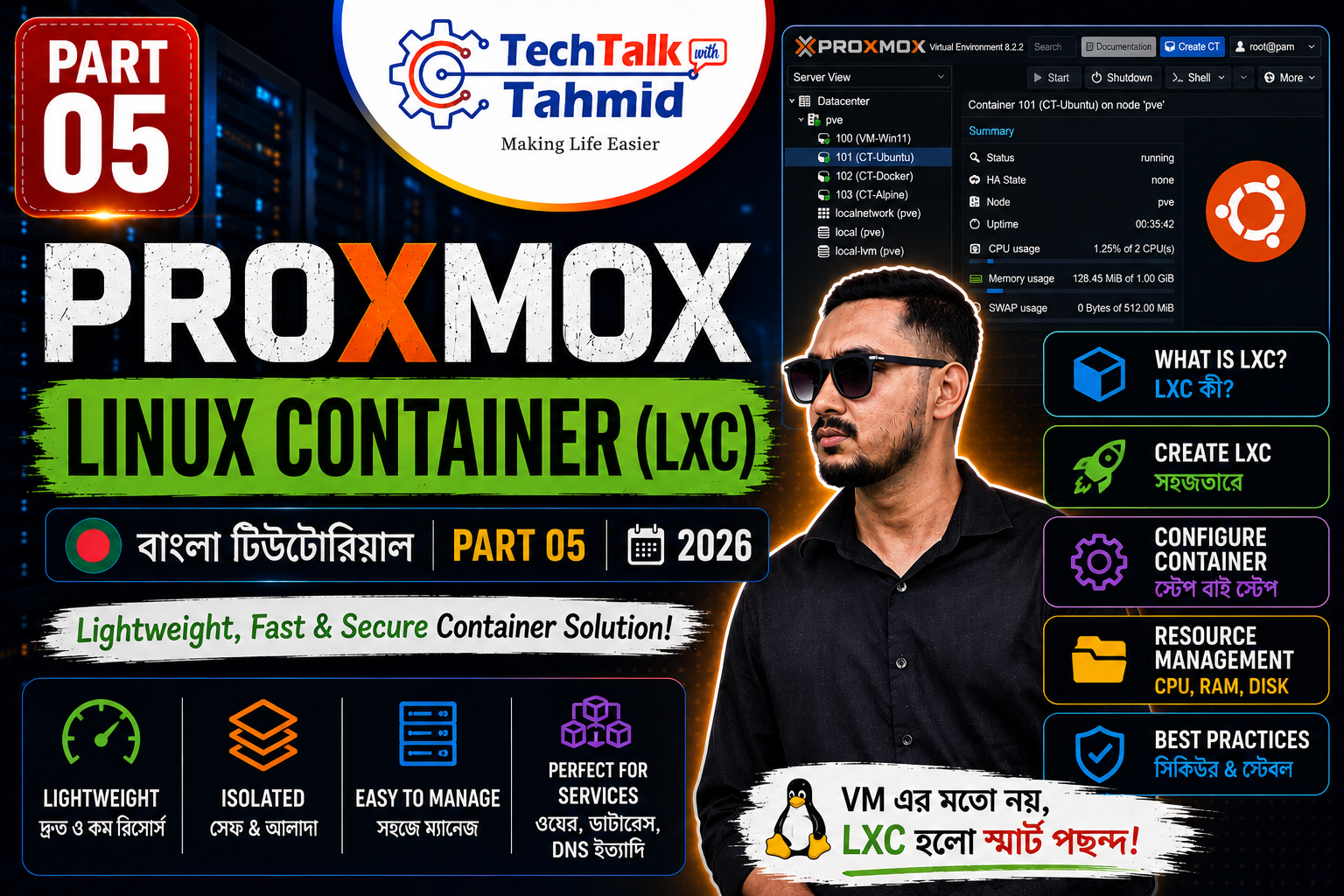
Welcome to Part 05 of our Proxmox Virtualization Masterclass series. In our previous modules, we covered hypervisor storage allocation and full Virtual Machine (VM) deployments. Today, we are shifting our focus to a much more resource-efficient virtualization method: creating ultra-lightweight, super-fast Linux Containers (LXC) in Proxmox VE.


Architectural Difference: LXC vs. Virtual Machine (VM)

You might be wondering: if we can already create Virtual Machines, why do we need Linux Containers? The answer lies in their underlying architectural differences and resource efficiency:

  • Virtual Machine (VM): A VM runs a complete, standalone operating system with its own dedicated kernel. It requires heavy computation power, high memory allocation, and massive storage space. A standard VM might take 1 to 3 minutes just to boot up.
  • Linux Container (LXC): An LXC does not emulate a full hardware stack or run its own isolated kernel. Instead, it shares the host server’s Linux kernel. This makes it incredibly lightweight. An LXC can boot up in just 2 to 3 seconds. Because of this shared architecture, a service that requires 4GB of RAM on a VM can comfortably run on an LXC with just 512MB or 1GB of RAM.

Step 1: Downloading Container OS Templates

Unlike Virtual Machines that require bootable ISO image files, Linux Containers are deployed using pre-configured, highly compressed system templates.

  1. Log into your Proxmox web interface. In the left-hand navigation tree, select your local storage repository (typically located directly under your primary Node).
  2. From the middle column, click on the CT Templates option.
  3. Click the Templates button located in the top menu bar. This opens the central template library.
  4. Scroll through the list of official Linux distributions (Ubuntu, Alpine, CentOS, etc.) or use the search bar. For this tutorial, select a standard Debian build (e.g., debian-12-standard).
  5. Click the Download button. Wait a few moments for the download window to display a “Task OK” message, indicating the template is saved to your local drive.

Step 2: Creating the Linux Container (LXC)

Look to the top right corner of the Proxmox header and click the Create CT button to launch the container configuration wizard. Follow these exact steps:

  • General Tab:
    • Hostname: Give your container a recognizable name (e.g., debian-lxc-node).
    • Password: Enter a strong root password. You will need this to log into the container’s terminal later.
  • Template Tab:
    • Set the storage drop-down to local.
    • Select the Debian template (e.g., debian-12-standard.tar.zst) you just downloaded from the Template drop-down list.
  • Root Disk Tab:
    • Choose your high-speed storage pool (e.g., SSD_Storage) from the Storage drop-down.
    • Set the Disk Size (GiB). Because containers are lightweight, 8 GiB is usually more than enough for a standard micro-service.
  • CPU Tab:
    • Set the Cores allocation. Usually, 1 or 2 cores are perfectly adequate for standard LXC workloads.
  • Memory Tab:
    • Memory (MiB): Allocate your active RAM. For example, enter 1024 for 1GB of RAM.
    • Swap (MiB): Enter 1024 to allocate 1GB of overflow swap cache to prevent crash states during heavy load.
  • Network Tab:
    • Ensure the Bridge is mapped to your default virtual switch, typically vmbr0.
    • Under IPv4, you can assign a Static IP address manually, or select DHCP to let your physical home router assign an IP address automatically.

Once you reach the Confirm tab, review your parameters and click the Finish button. Proxmox will extract the template and build your container in less than 15 seconds!


Step 3: Initializing and Accessing the LXC Terminal

Once the task log says “Task OK”, close the log window. It is time to boot up your new container.

  1. Locate your newly created container in the left-hand inventory list (it will have a small cube icon next to its ID) and click on it.
  2. Click the Start button in the top right menu area.
  3. Switch to the Console tab in the main workspace window.
  4. You will immediately see a login prompt. Type root as the username and hit Enter. Then, type the secure password you created during Step 2.

Congratulations! You are now logged into a fully functioning, blazing-fast Linux Container environment.


Conclusion

You have successfully deployed a high-performance, resource-friendly Linux Container (LXC) on your Proxmox server. For 90% of HomeLab services—like running web servers, NAS dashboards, or network ad-blockers—LXCs are far superior to standard Virtual Machines due to their speed and efficiency. In our upcoming tutorials, we will explore advanced routing and how to run Docker environments inside these containers.

To watch the full LXC creation process live, check out the complete step-by-step video tutorial below:


Tags: homelabproxmoxservertutorial
Next Post

How to Setup Proxmox Backup and Restore Using ZFS

Please login to join discussion

Recommended.

**From chatbots to core operating systems: Generative AI is no longer just a tool, but the invisible intelligence transforming every piece of tech we own.**

October 22, 2025

Is AI art generation a revolutionary tool for creativity, or a threat to artists and intellectual property?

July 8, 2025

Trending.

No Content Available
TechTalk with Tahmid

TechTalk with Tahmid is a tech blog that provides informative and engaging content on a variety of topics, including software development, web design, and cybersecurity.

Follow Us

Categories

  • Linux
  • Operating System
  • Proxmox Server
  • Tech News
  • Tech Tips
  • Tutorial
  • Ubuntu
  • Uncategorized
  • windows

Tags

homelab installation linux OS post install proxmox raid server tutorial ubuntu windows10

Recent News

How to Setup Proxmox Backup and Restore Using ZFS

June 11, 2026
Proxmox LXC Setup Guide (2026)

Proxmox LXC Setup Guide (2026)

June 11, 2026
  • About
  • Sponsor
  • Privacy Policy
  • DMCA
  • Contact

© 2023 TechTalk with Tahmid - All Rights Reserved.

No Result
View All Result
  • Home
  • Tech News
  • Tutorial
  • Server
    • Cloud Server
    • Docker
    • Mail Server
    • Media Server
    • NAS server
    • VPN Server
    • VPS
    • Web Server
  • PC
    • Hardware
    • Software
  • Smartphone
    • Android
    • iOS
    • Other OS
  • Login
  • Sign Up

© 2023 TechTalk with Tahmid - All Rights Reserved.

Welcome Back!

Sign In with Facebook
Sign In with Google
OR

Login to your account below

Forgotten Password? Sign Up

Create New Account!

Sign Up with Facebook
Sign Up with Google
OR

Fill the forms below to register

*By registering into our website, you agree to the Terms & Conditions and Privacy Policy.
All fields are required. Log In

Retrieve your password

Please enter your username or email address to reset your password.

Log In

Add New Playlist

This website uses cookies. By continuing to use this website you are giving consent to cookies being used. Visit our Privacy and Cookie Policy.
Go to mobile version